Configuring NTP (Network Time Protocol) on your Pi-hole
What is NTP?
Network Time Protocol (NTP) is used to synchronise the clocks of devices on a network, ensuring they report the same time. In a home network, NTP helps keep computers, routers, and iot/smart devices running on the same time, ensuring consistency between scheduling events, logging activities, and within time-sensitive applications. It works by connecting to time servers on the internet, which provide accurate time based on atomic clocks. A server on your own network can then relay the information to devices on your network. Operating your own server minimises external traffic and helps keep the time consistent across your devices.
Configuring Pi-hole's NTP client and server
Settings relating to NTP are in the "Network Time Sync" tab of the All Settings page. If All Settings is not visible, click where it says "Basic" at the top right to toggle the Expert settings, and All Settings will become visible in the Settings section.
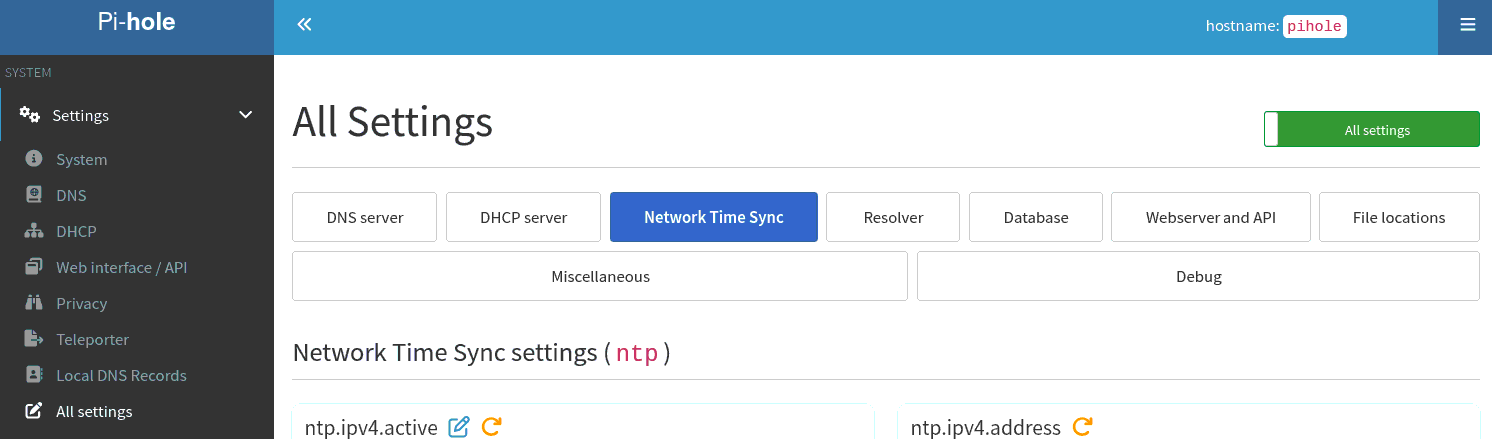
Client settings
Pi-hole acts as an NTP client, synchronising the time on your Raspberry Pi or other system with that provided by a reliable online source. Having the correct time ensures that certificates fall within their valid time frame, allowing protocols such as DNSSEC to work effectively.
The NTP client is enabled by default, but can be disabled by deselecting ntp.sync.active
Upstream NTP Server
You can specify the server you wish to synchronise with at ntp.sync.server
The default server is pool.ntp.org, which selects a server from the NTP pool project, a virtual cluster of timeservers providing reliable, easy to use NTP service. The NTP Pool is generally of very high quality, but it is a service run by volunteers in their spare time.
Other public ntp servers include
time.cloudflare.com, time.facebook.com and time.google.com
If your ISP provides an NTP server (or if there is an NTP server on your network), you may enter its address here.
Typically the closer you are to the server there will be less network jitter, and you will be able to obtain a more accurate time.
Synchronisation frequency
The frequency that Pi-hole queries the server is set at ntp.sync.interval, and the number of readings compared at each synchronisation is set at ntp.sync.count
By default this is set to 3600 seconds, so that Pi-hole will synchronise the time once every hour, taking the average of 8 readings.
If there is an NTP server on your network, the time between queries can be decreased here.
If you are using a public time server, note that querying excessively violates the terms of use of many public servers, and could result in your IP being banned.
Server settings
Pi-hole acts as an NTP server, allowing other devices on your network to synchronise their time with it. This passes along the accurate time that was obtained over the internet.
The NTP server is enabled by default, but can be disabled by deselecting ntp.ipv4.active and ntp.ipv6.active.
Listening addresses
By default, Pi-hole will respond to NTP requests on all addresses. The Pi-hole NTP server can be restricted to listening to a single address, which may be specified by ntp.ipv4.address and ntp.ipv6.address.
Real time clock (RTC) synchronisation
Many computers keep time while powered off using a small, battery-backed hardware clock called the real time clock (RTC). The operating system reads it at boot to know the current time before it has had a chance to reach the network. If that clock drifts, or was never set, the system can start up with the wrong time - and being off by even a few minutes is enough to break TLS certificate validation or DNSSEC until the first successful NTP synchronisation.
Pi-hole can keep the hardware clock correct for you. When this is enabled, after each successful synchronisation Pi-hole checks the hardware clock against the accurate time it just obtained and, if the two differ, corrects it. There is no needless writing when the clock is already right. The RTC therefore stays close to the real time, and your system comes up with a good time immediately after a reboot, even before it has reached an NTP server.
This is disabled by default and enabled with ntp.sync.rtc.set.
Note that not every device has a hardware clock - Raspberry Pis in particular do not ship with one, which is why this is off by default. If your device has no RTC there is simply nothing for Pi-hole to update, and the setting can be left disabled.
RTC location
Leave ntp.sync.rtc.device empty and Pi-hole looks for the clock in the usual places (/dev/rtc0, /dev/rtc, and so on). If your clock lives somewhere else, or you have more than one and want a specific one, set the exact path here, for example /dev/rtc0.
The RTC device is normally owned by root, while Pi-hole itself runs as an unprivileged user. Pi-hole takes care of accessing the clock for the brief moment it needs to and restores the original ownership afterwards, so you do not need to adjust any permissions yourself.
UTC or local time
ntp.sync.rtc.utc controls whether the hardware clock is written in UTC (Coordinated Universal Time) instead of your local time zone. Storing the RTC in UTC is the usual convention on Linux and is the default. You normally only need to change this if another operating system on the same machine expects the clock in local time - the classic example being a dual-boot setup with Windows.
Advertising Pi-hole's NTP server to devices on your network
If Pi-hole is also operating as a DHCP server, it will also advertise the presence of your NTP server to devices on your network when it gives them their address.
Note that not all client devices are able to make use of this feature, and may need to be configured manually.